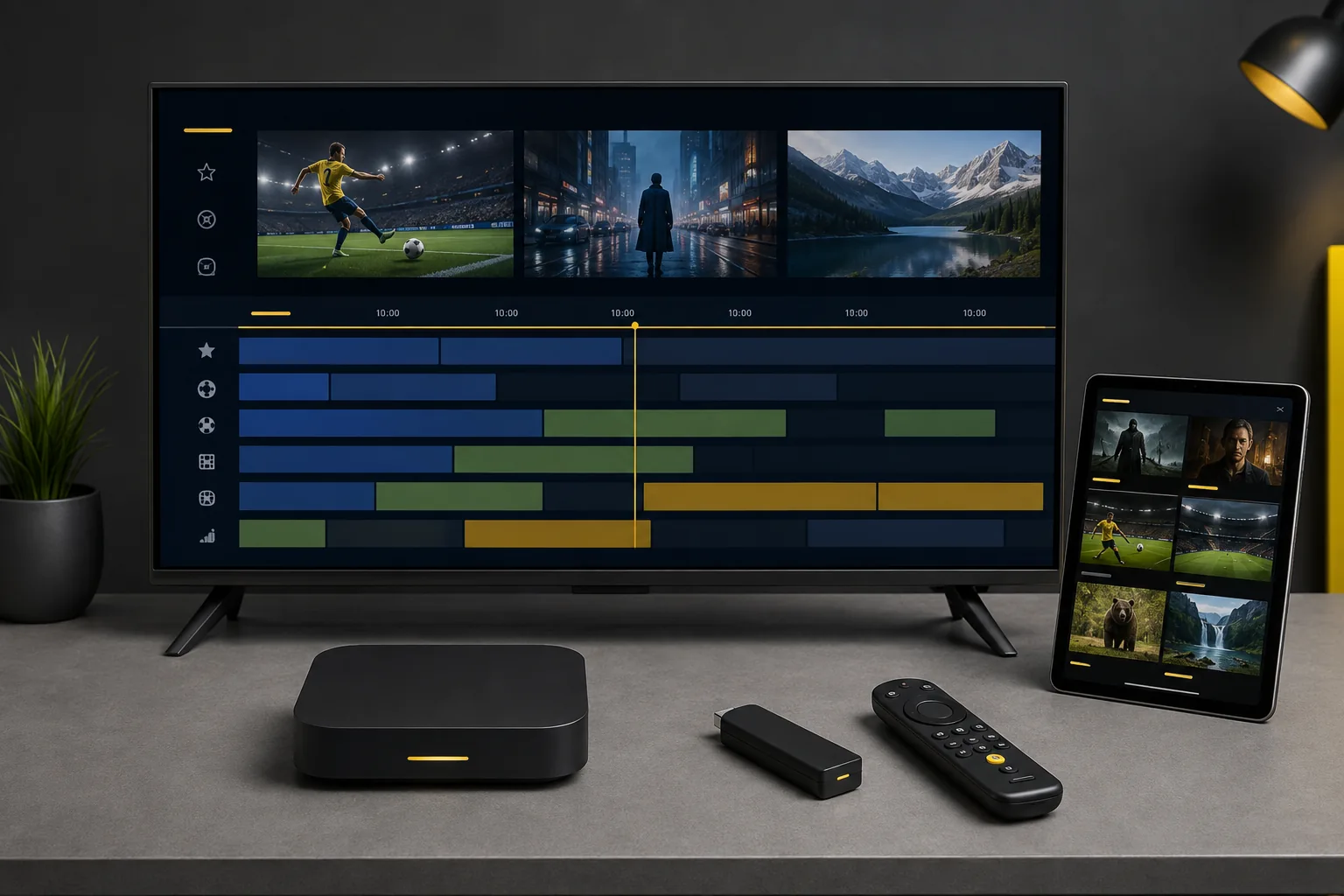
Start with the right kind of device
TiviMate's publisher describes it as intended for Android TV and not optimised for phones or tablets. That makes the device's operating system the first thing to check. A television brand alone will not tell you whether this app is an appropriate choice.
Use the official TiviMate information for current requirements and subscription details. Do not assume it is a native app for Samsung Tizen, LG webOS or an Apple device. For a Fire TV or another box, confirm the exact model and the supported installation route before paying for anything.
The player and the service are separate
Think of the player as the way you organise and open your viewing, not as the content itself. You still need authorised access. A payment to a player publisher and a payment for your IPTV package are different purchases, with separate terms.
Ask about any optional player features you need before committing. Do not assume your free IPTV trial includes a paid TiviMate licence. Test the functions available in your installed version and confirm additional costs independently.
A clear setup order
- Confirm your TV or box model and install the appropriate app through its official supported route.
- Ask support which login or playlist method applies to your trial.
- Enter those details carefully and let the initial loading finish.
- If a programme guide is supplied, follow the instructions for that guide.
- Open a live programme and test navigation with your remote.
Menu labels can change between releases. If what you see differs from a guide, send the version and a description of the screen to support, keeping your login details hidden.
What to test from the sofa
Use the player as you would on an ordinary evening. Can you find a channel without moving closer to the screen? Is programme information readable? Is it easy to return to what you were watching? Navigation that feels comfortable matters more than a long feature list.
For football and other sport, leave playback running and observe fast movement and commentary. Then try another programme to distinguish a source-specific issue from a device or connection issue. Our sports checklist gives you a structured way to test.
If loading or playback fails
First confirm that access is active and the chosen login format is correct. For a guide problem, check time settings and the guide details. For interruptions, note whether all channels are affected and try the steps in the troubleshooting guide. Avoid clearing everything before noting the problem.
Not using Android TV?
Consider a player designed for your platform. Read the Smarters Pro guide and the device comparison, then send your exact model when requesting the 24-hour UK trial.